
AU7 APK – Android Download, Installation and Update Guide
AU7 APK is a search term used by Android visitors looking for the AU7 Game installation package, app information, download options and update instructions. An APK, short for Android Package Kit, contains the components Android needs to install a compatible application. It is different from a website link, an account registration page or a shortcut added to your home screen.
This guide explains what an APK file does, how to check the identity of a download, how Android installation works and what to do when an installation fails. It also introduces the AU7 Game interface, including references to Aviator, slot games, Rummy, fishing titles and other categories. Actual game availability can change, so the app you open may not contain every title shown in reference material.
The website's existing Hero download button opens an external BU7-branded destination, not a directly verified AU7 APK file. Before entering account information or installing software from that destination, check the name of the service, the application publisher and the file being offered. For general game information, visit the AU7 Game homepage.
AU7 APK Information
The table below displays information configured for this website. Values such as version, size, downloads and bonus are not independently verified package metadata; check the actual release details before treating them as current.
Explore the AU7 App
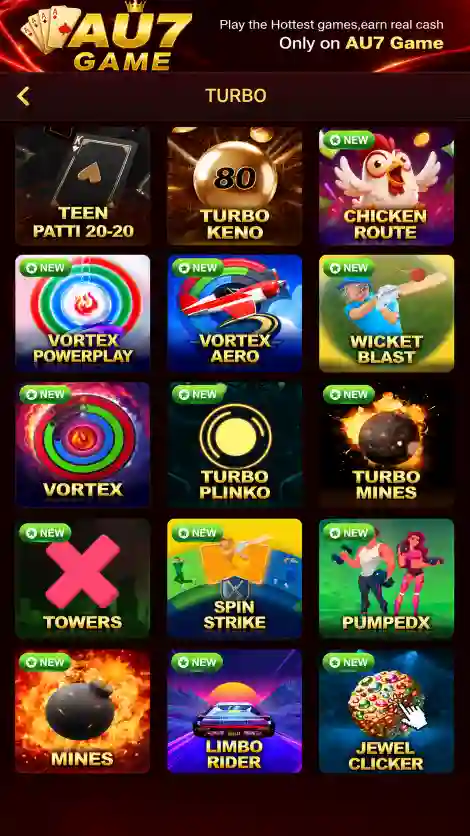
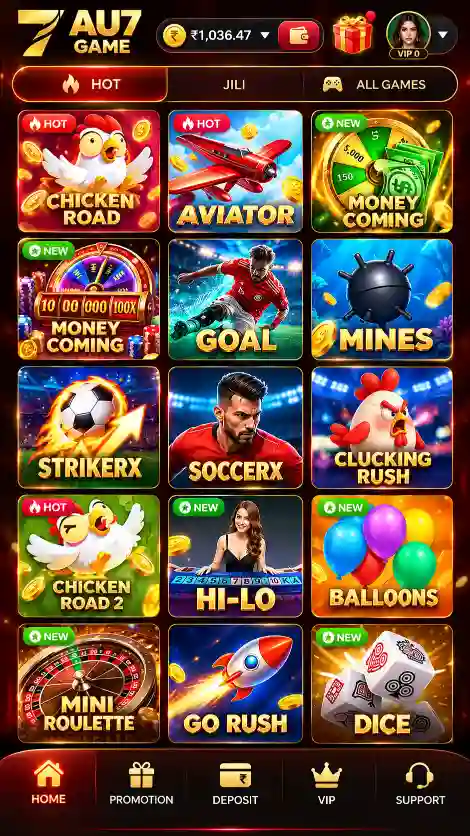
Swipe or use the arrows to browse the reference screenshots one at a time. Screens and menus may differ between application versions.

AU7 APK vs AU7 App: What Is the Difference?
People often use the phrases AU7 APK and AU7 App interchangeably, but they are not exactly the same. The APK is the installation file. The app is the software that becomes available after Android accepts and installs that package. A download can finish successfully without the app being installed, and an installed app can remain on the device after its original APK file is deleted.
If you want to understand the mobile interface, game categories and account navigation, the AU7 App guide is the better starting point. This page concentrates on package files, Android installation, updates and common errors.
Verify the source, publisher and package identity.
Review Android prompts and permissions carefully.
Launch the installed app from your device.
AU7 Game APK Features and Interface
The AU7 Game references include mobile-oriented menus, recognizable game artwork and categories for several types of entertainment. Depending on the actual application version, the interface may include crash-style games, slot titles, card games and fishing games. Game rules, account features and available promotions depend on the service providing the application.
- Game Categories: Sections may group slot, casino-style, fishing and other games.
- Touch Navigation: A mobile interface designed for tapping game icons and menus.
- Account Options: Login, registration and profile controls may appear in the app.
- Version Changes: Updates can modify appearance, compatibility and features.
- Game Discovery: Browse titles such as Aviator, Rummy and Mines where offered.
A screenshot is a useful visual reference but cannot prove that a download is genuine or that a particular feature is available today. Compare what you see on your device with the current information supplied by the actual publisher.
Android Requirements Before Installing an APK
Android packages have technical requirements that differ from one release to another. Before attempting an installation, check the Android version supported by the file, available device storage and whether the package matches your device architecture. A download that works on one phone may not work on an older model.
- Keep enough free storage for the downloaded package and installed application.
- Use a stable internet connection to prevent incomplete downloads.
- Verify the intended app name and publisher rather than relying on the filename alone.
- Leave Android security protections and Google Play Protect enabled.
- Avoid modified APKs, unknown mirror sites and packages promising guaranteed winnings.
- Read permission requests before allowing access to sensitive device features.
If an APK lists a specific Android version, treat that requirement as more reliable than a generic statement such as "works on all phones." The exact requirements of a particular AU7-branded package have not been independently confirmed here.
How to Download AU7 APK for Android
Visitors searching for AU7 APK Download usually want a working installation package. However, a button labelled "Download" can sometimes open a landing page, registration screen or external service rather than an APK file. The existing button on this website leads to a BU7-branded external destination, so it should not be described as a direct AU7 APK download.
- Open the download destination using the existing Hero button.
- Read the destination address and identify the service being offered.
- Check whether an Android installation package is actually provided.
- Compare the file's app name, publisher and version with the intended software.
- Download only when you can verify that the package is appropriate.
- Wait until the file has completely downloaded before opening it.
Most Android browsers place downloaded APK files in the Downloads folder. You may also find them through File Manager or the browser's download history. For browser-based access and other download questions, see our AU7 Download guide .
How to Install an APK on Android
Step 1: Locate the File
Open the Downloads folder or File Manager and find the package you intended to download. A partial download or an unfamiliar filename is a reason to verify the source again.
Step 2: Review the App Identity
Tap the package and read the information Android displays. If the app name differs from what you expected, cancel the installation rather than proceeding on the assumption that the name is unimportant.
Step 3: Check the Installation Prompt
Android may request permission for the browser or File Manager to install apps from that source. Only approve the request if you have established that the publisher and package are trustworthy.
Step 4: Complete Installation
Follow the device's normal installation prompts. If Android identifies the app as harmful, stop. Do not turn off security protections simply to force a package to install.
Step 5: Open the Installed App
After a successful installation, look for the application in your app drawer. Open it, review the available interface and confirm that it matches the software you intended to install.
Android Installation Permissions Explained
On many Android devices, installing an APK outside a recognized app store involves an "Install unknown apps" or "Allow from this source" setting. This setting applies to the browser or file manager that opens the package. It is not a guarantee that the package itself is safe. You should review the publisher and file before deciding whether to allow the installation.
The source permission can usually be disabled again after installation. This is separate from Android warnings about malware or harmful behavior; do not bypass such warnings. Also consider whether the installed app requests access to contacts, messages, photos, location or other information unrelated to its functions.
AU7 APK Latest Version and Update Guide
The phrase AU7 APK latest version refers to the most recent compatible release made available by the actual publisher. The version displayed on a third-party page may be outdated or may describe a different package. Confirm the release details before installing any replacement file.
Android normally recognizes an update when the replacement package uses a compatible app identity and signing certificate. A higher version number by itself is not enough. If the signatures do not match, Android may reject the installation even when the filenames appear similar.
- Check the version of the app already installed.
- Locate update information from the trusted publisher.
- Verify that the new APK belongs to the same application.
- Download the complete package and review Android's update prompt.
- Confirm that the application opens and behaves as expected afterward.
Do not uninstall an existing application merely because an update fails. Removing it may delete locally stored settings or other data. Investigate the error and preserve important information before taking that step.
AU7 APK Problems and Troubleshooting
APK installation errors can have several causes, including network interruptions, insufficient storage, corrupted files, unsupported Android versions or package conflicts. The exact message shown by your device is often the best clue.
Check the connection, browser settings and whether the destination actually offers an APK.
Check storage and network stability. Do not open a partially downloaded package.
Review compatibility, available space and conflicts with an existing installation.
The file may be corrupted, incomplete or incompatible with your Android version.
Check whether the replacement package matches the installed app and its signing identity.
Check Downloads, File Manager, browser history and download notifications.
Restart the device, check compatibility and look for publisher-supported fixes.
Check account credentials and service availability; this may not be an APK installation issue.
If the app opens but an account cannot be accessed, consult the AU7 Login guide rather than repeatedly reinstalling the package. Login and registration problems may be caused by account verification or the service itself.
AU7 APK Security and Source Verification
A familiar game logo, an attractive bonus or a high download counter does not prove that an APK is authentic. The important checks are the actual download source, the publisher, the package identity and Android's security information. Avoid installing software distributed through unsolicited messages or pages that pressure you to disable security features.
- Confirm the app publisher and website before downloading.
- Keep Google Play Protect and Android updates enabled.
- Do not share passwords, OTPs or account recovery codes.
- Avoid altered APKs advertised as hacks, cheats or guaranteed winning tools.
- Read account and payment conditions before using any gaming service.
- Check applicable local laws and age restrictions for real-money gaming.
Games involving money carry financial risk, and no game outcome or reward is guaranteed. The Responsible Gaming page provides additional guidance about limits and risk awareness.
What to Do After Installing the App
Once the app appears in the Android app drawer, open it and confirm that its menus and features match what you expected. Installation does not automatically create an account. Registration, mobile verification, passwords and login procedures depend on the service actually providing the software.
If you already have an account, protect your login details and avoid entering credentials on an unfamiliar website. If you are exploring the game interface for the first time, read the AU7 App overview and the AU7 Login instructions for related information.